

Introducing AI Assistant v4 for Optimizely CMS 12 and 13
Epicweb AI Assistant v4.0 adds full support for Optimizely CMS 13 on .NET 10 while staying compatible with CMS 12 on .NET 8, plus new AI Chat tools for Visitor Groups and Display Options to simplify personalization and layout for ContentAreas.

Introducing AI Assistant v4 for Optimizely CMS 12 and 13
Epicweb AI Assistant v4.0 is here, bringing full support for Optimizely CMS 13 on .NET 10 while staying fully compatible with CMS 12 on .NET 8. If you already use AI Assistant Chat in Optimizely, v4 is a straightforward upgrade that expands what the chat can understand and do inside the CMS, especially around personalization and layout.
AI Assistant Chat is built to work where editors work. It is context-aware, can use the current page or attached content items, and helps with analysis, writing, translation, SEO, and accessibility. It can also propose updates, but it only applies changes after an editor confirms.
One package for CMS 12 and CMS 13
AI Assistant v4 is the first release to target both CMS generations from a single NuGet package. Whether your solution runs on CMS 12 (.NET 8) or CMS 13 (.NET 10), you install the same package: Epicweb.Optimizely.AIAssistant. The correct build and dependencies are selected automatically during restore, so you do not need separate installation instructions per CMS version.
What changed under the hood
- The main package multi-targets net8.0 and net10.0.
- CMS and framework dependencies that moved in CMS 13, for example EPiServer.Logging, are handled transparently.
- Companion packages, including Epicweb.Optimizely.AIAssistant.Tools, follow the same multi-target strategy.
Getting started on CMS 13
Setup is identical to CMS 12. In Startup.cs:
services.AddAIAssistant();
Further implementation => Guide: Install the AI Assistant Chat for Optimizely
New in v4: Visitor Group discovery in chat
Editors often know what they want to target, but not the exact visitor group name or ID. v4 adds VisitorGroupTools so AI Chat can discover and use the visitor groups configured in your Optimizely instance.
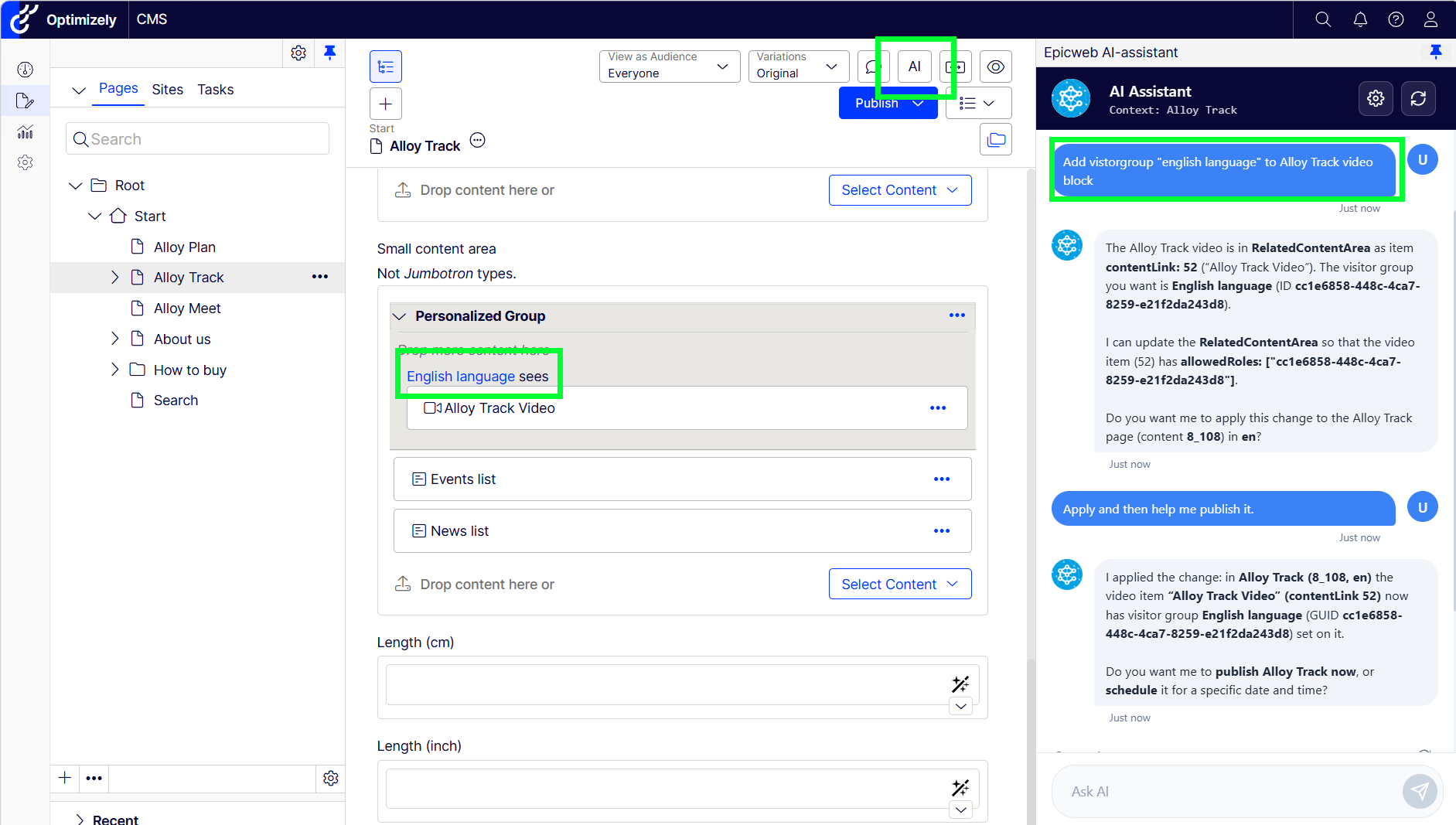
When an editor asks something like “Show this banner only to VIP customers”, the assistant can now:
- List visitor groups with GetAllVisitorGroups
- Inspect a specific group with GetVisitorGroup
- Apply the correct visitor group when updating content area items via allowedRoles
This removes the need for manual GUID copy-pasting and makes personalization requests far more natural for editors.
Example conversation
Editor: “Personalise the hero area so only mobile users see the promo block.”
AI Assistant: calls GetAllVisitorGroups, finds “Mobile Users”, then updates the relevant content area item with allowedRoles: [“Mobile Users”].
New in v4: Display option discovery in chat
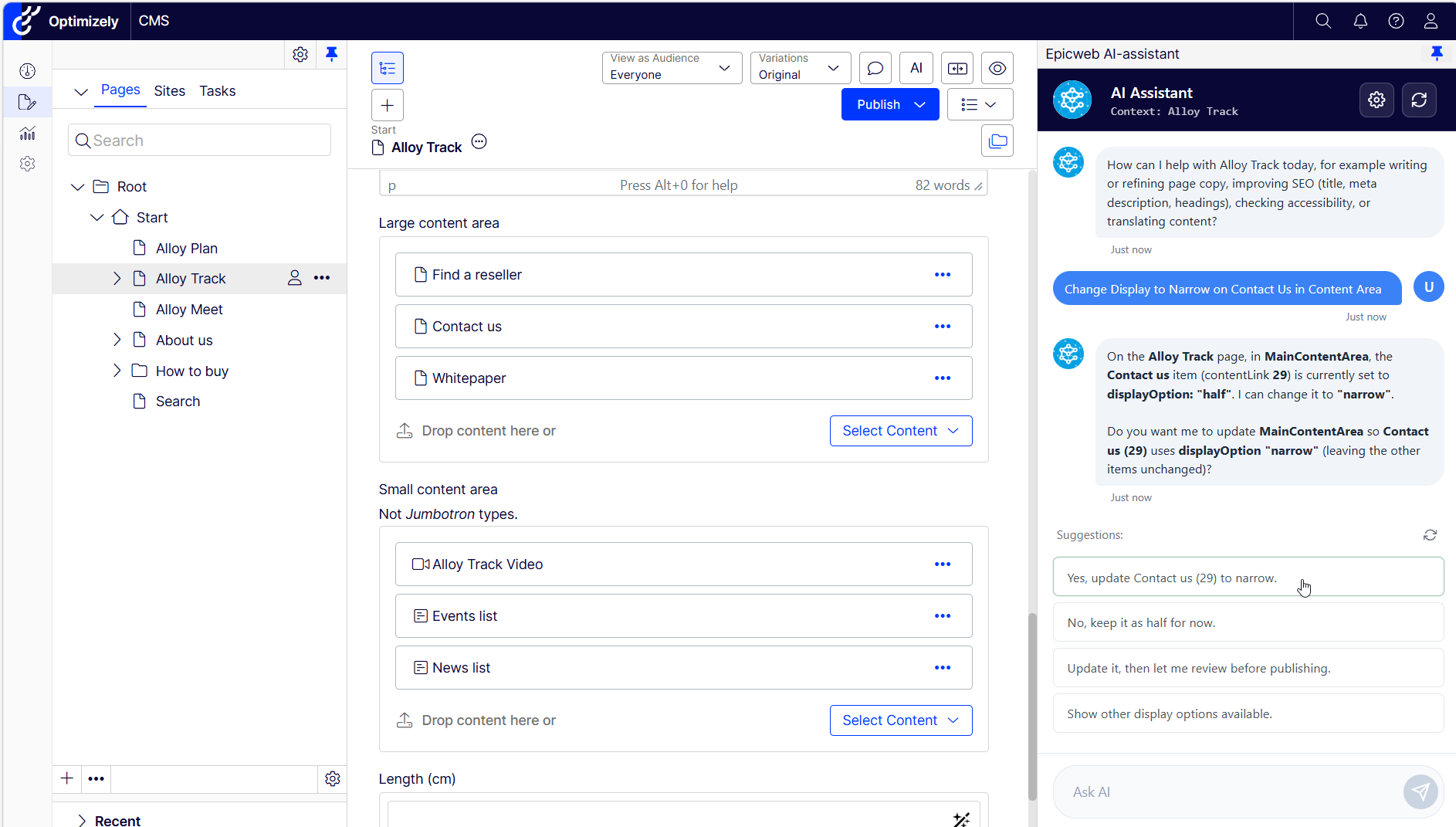
Display options are powerful layout hints for content areas, but editors rarely remember the configured IDs. v4 introduces DisplayOptionTools to solve that.
GetAvailableDisplayOptions returns every registered display option with its ID, name, and tag, so the assistant can suggest and apply the right layout automatically.
Example conversation
Editor: “Put the testimonial block in the sidebar area at half width.”
AI Assistant: calls GetAvailableDisplayOptions, finds id “half”, then sets displayOption: “half” on the content area item.
Recommended tool registration (v4)
To enable the full AI Chat experience, including the new visitor group and display option discovery tools, register tools like this:
- BuiltinTools
- BuiltinChatTools
- BuiltinPublishChatTools
- BuiltinUpdateChatTools
- VisitorGroupTools (new in v4)
- DisplayOptionTools (new in v4)
- BuiltinChatImageTools
- BuiltinChatCreateImageTools
Upgrading from v3
- Update NuGet packages to 4.0.0
- Register VisitorGroupTools and DisplayOptionTools (optional, but recommended)
- No breaking changes in the public API, existing conversations and custom tools keep working
- If migrating from CMS 12 to CMS 13, retarget to net10.0 and upgrade Optimizely packages to 13.x, AI Assistant handles the rest
Links
- NuGet Package
- GitHub Repository
- Configuration Guide
- Video Guides
- Premium Subscription
- Guide: Install the AI Assistant Chat for Optimizely
See the AI Assistant in Optimizely CMS in action
Book a meeting to get started!
We offer a one-hour introduction meeting about our AI Assistant for Optimizely CMS 12 or later. (Swedish or English)
The AI Assistant: This is what you get
Feature-Rich for Enhanced Editorial Efficiency
Epicweb's AI Assistant comes with an impressive array of features:
-
Text Suggestions and Alternatives: Enhance your writing with AI-generated phrasing and alternative variations.
-
Multilingual Translation: Seamlessly translate your text into multiple languages while preserving formatting and style to reach a diverse audience.
-
SEO, AEO and GEO: Generate optimization content for search engines and AI search.
-
Prompt Pro Assistance: It saves time and helps you get more out of your ideas, instantly.
-
Image AltText Analyzer: Advanced AI capabilities to analyze images and automatically populate media object properties
-
Image Generation: Create relevant and engaging images that complement your content.
-
Image Transformer: Take any image, enhance it, and add new elements with AI-powered creativity. Transform the way you interact with images.
-
New Text Generation: Generate fresh content that keeps your audience engaged.
-
Text Summarization: Quickly condense long texts into concise summaries, saving time and maintaining essence, perfect for SEO descriptions.
-
HTML Formatting: The AI-Assistant offers a range of formatting capabilities within the Rich Text Editor. WCAG Compatible.
-
Spell-Checking: Ensure your content is error-free and professionally polished.
-
Tone Adjustment and Consistency: Adapt your content’s tone to suit its purpose and maintain a consistent brand voice.
-
Keyword Extraction: Identify and extract key terms from your text for SEO optimization.
-
Custom Assistants: Harness the power to run your own prompts for tailored, unique content management.
-
Custom Shortcut Prompts: Add your own shortcuts for frequently used commands, connect tools and enhancing productivity.
-
Inline Chat: Use ChatGPT or Google GEMINI directly within the platform for instant assistance with full context awarness.
-
Tools for AI: Connect your C# Function Calling or MCP tools directly to the AI Assistant, enabling custom integrations.
-
RAG (Retrieval-Augmented Generation): Connect your own knowledge base for AI responses powered by your organization’s internal data.
Streamlined Integration into Optimizely
The AI Assistant is seamlessly integrated into every field within the Optimizely CMS and Commerce platform, ensuring that these powerful features are accessible right where you need them, in the editor mode.
Getting Started with The Epicweb AI-Assistant:
To get started with the free evaluation, simply fill in the form in our website to get started and download the addon to your Optimizely CMS and Customizable Commerce platform from the Optimizely Nuget feed.
Follow our beginner-friendly guide or dive deep with our comprehensive documentation.
Installation is quick and easy, allowing you to start harnessing the power of AI assistance in no time.
Book a meeting to get started!
We offer a one-hour introduction meeting about our AI Assistant for Optimizely CMS. (Swedish or English)
Note: This blog post has been enhanced with the help of the AI-Assistant for Optimizely.
About the Author