

News in AI Assistant for CMS: Assistants, Instructions and Statistics
We are introducing three new features for AI Assistant in Optimizely CMS. They make it easier to reuse AI expertise, work faster and understand how AI is being used across your website.

2min video featuring AI Assistants and Quick Instructions
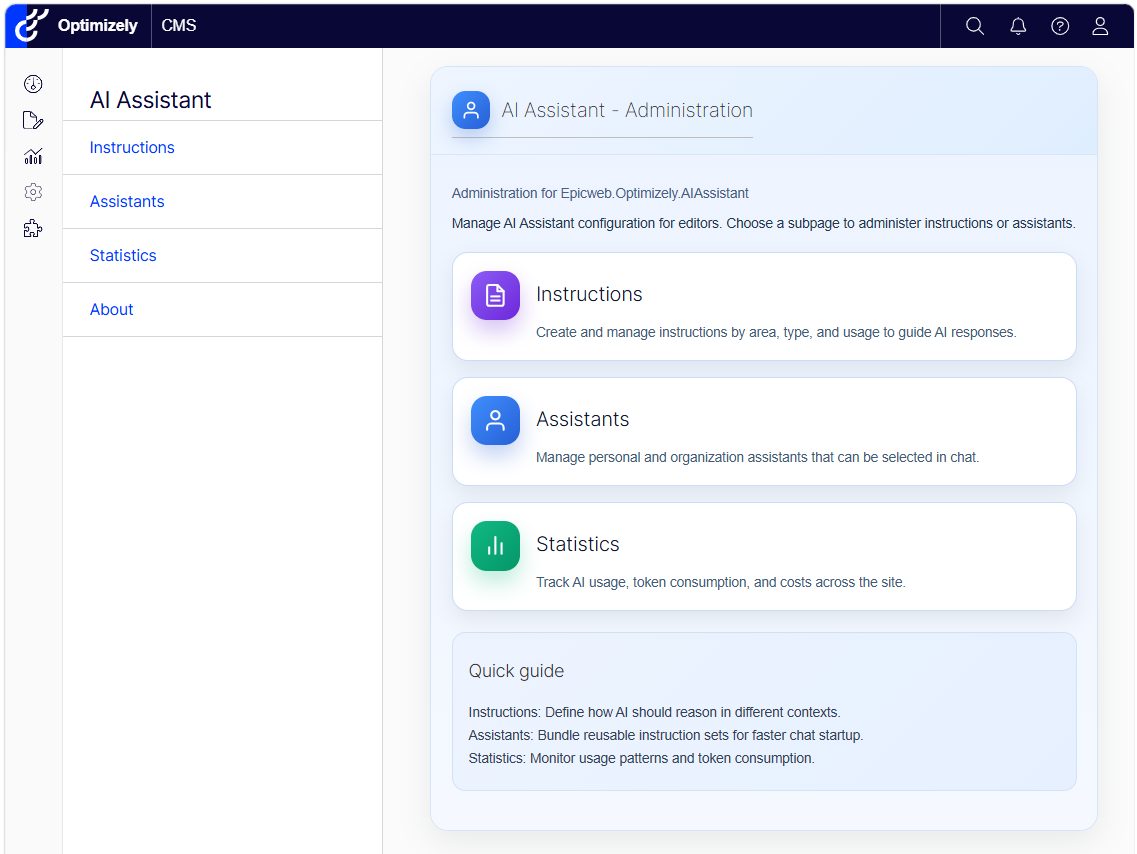
Administration: Everything in one place
The new Administration area provides one place to manage AI Assistant in Optimizely CMS.
Administrators can quickly access:
- Instructions to create and manage reusable AI guidance
- Assistants to manage specialized experts for different tasks
- Statistics to monitor AI usage, token consumption and estimated costs
The clear overview and quick guide make it easier to configure AI Assistant and support editors across the organization.
Assistants: Experts for different tasks
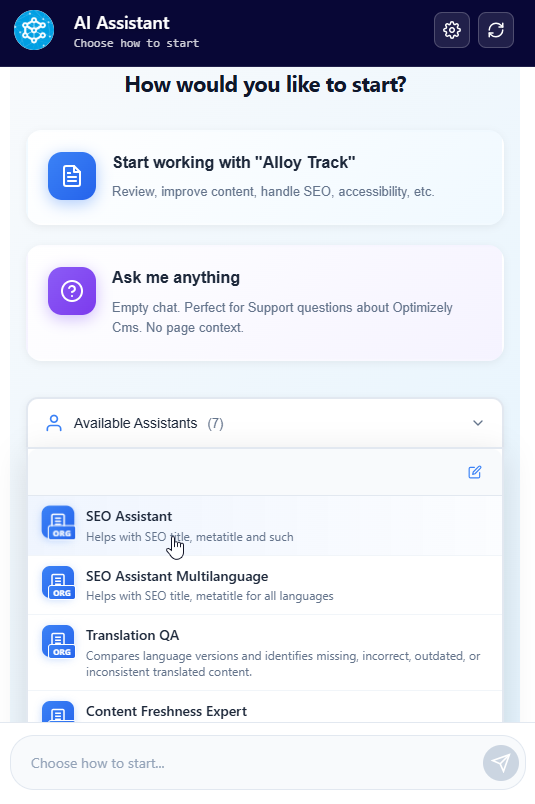
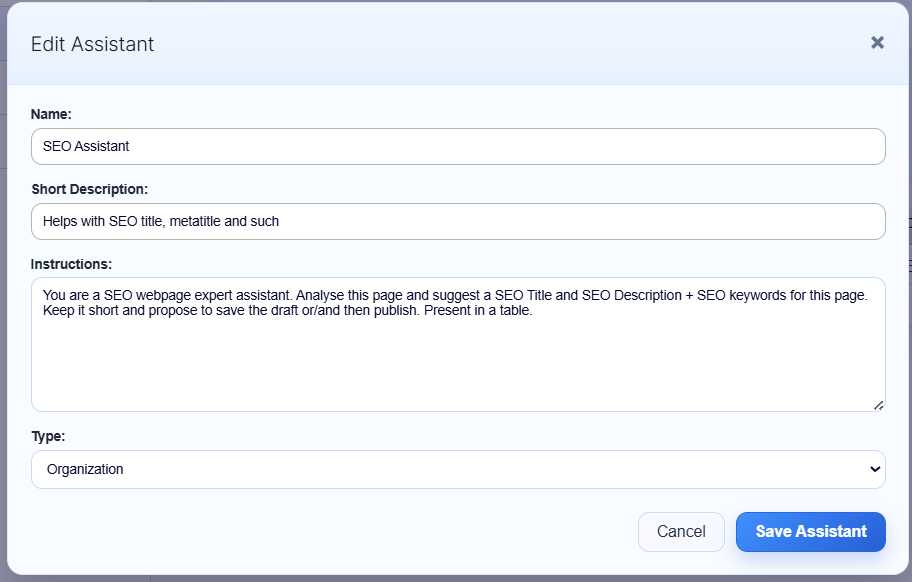
You can now create specialized AI Assistants for common editorial tasks.
Each Assistant has its own name, description and instructions. For example, you can create Assistants for:
- SEO optimization
- Translation quality
- Content freshness
- Brand voice
- Content quality
- Accessibility and WCAG
Editors can select an Assistant when starting a chat. The Assistant receives the current page as context and is ready to work on its specific task.
Assistants can be available to the whole organization or created for personal use.
Instructions: Reusable shortcuts in chat
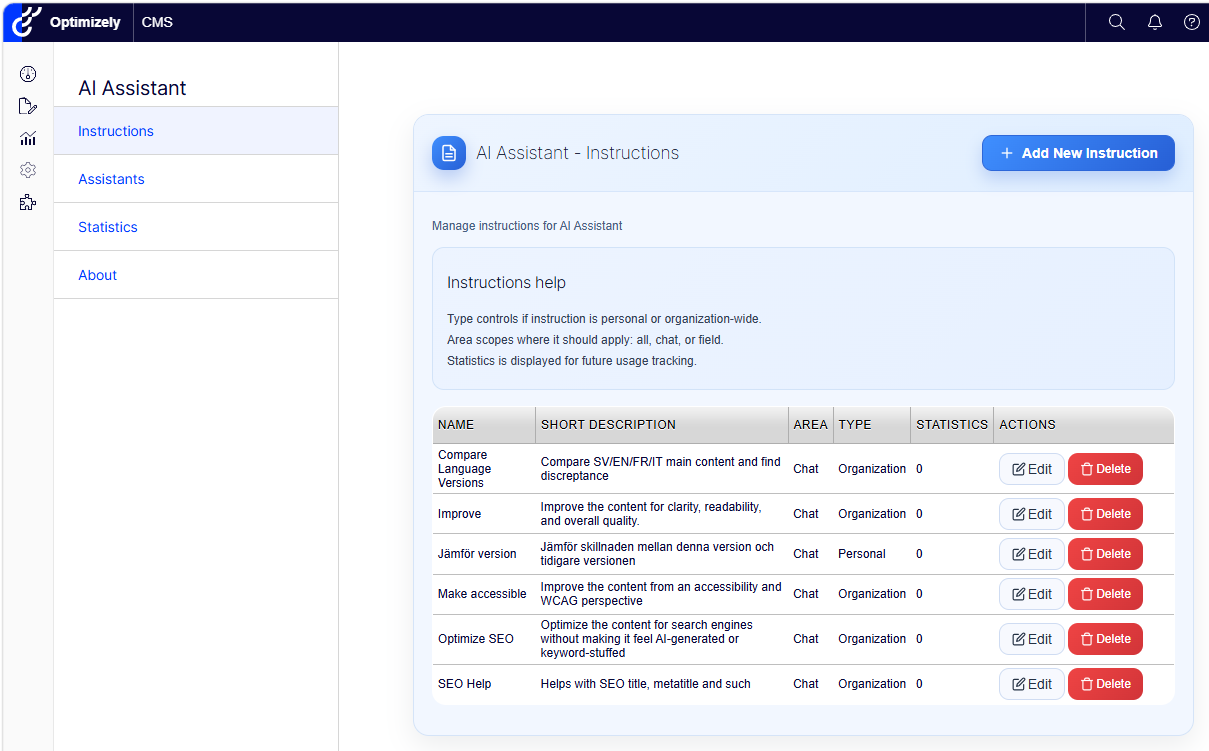
Instructions are reusable prompts that help editors complete common tasks faster.
Simply type / in the chat to open the list of available Instructions. Select one, and the prepared instruction is added to the input field.
Instructions can be used for tasks such as:
- Improving content
- Optimizing SEO
- Checking accessibility
- Comparing language versions
- Following specific writing guidelines
They can be personal or shared across the organization. Administrators can also control where each Instruction is available, such as in the chat, in content fields or throughout AI Assistant.
This gives editors consistent results without having to write the same prompt every time.
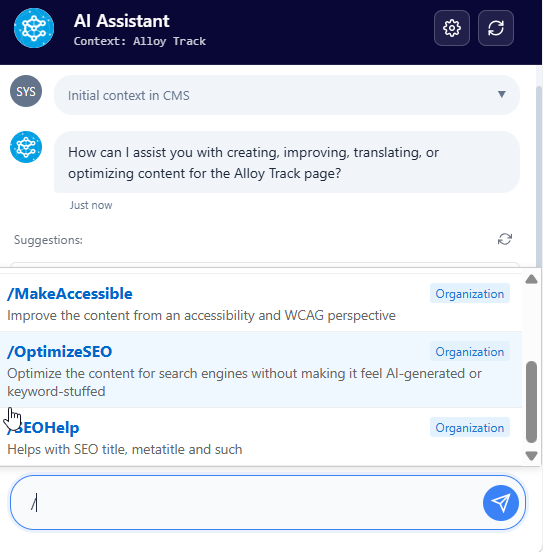
Using the / shortcut to quickly select an Instruction in the chat.
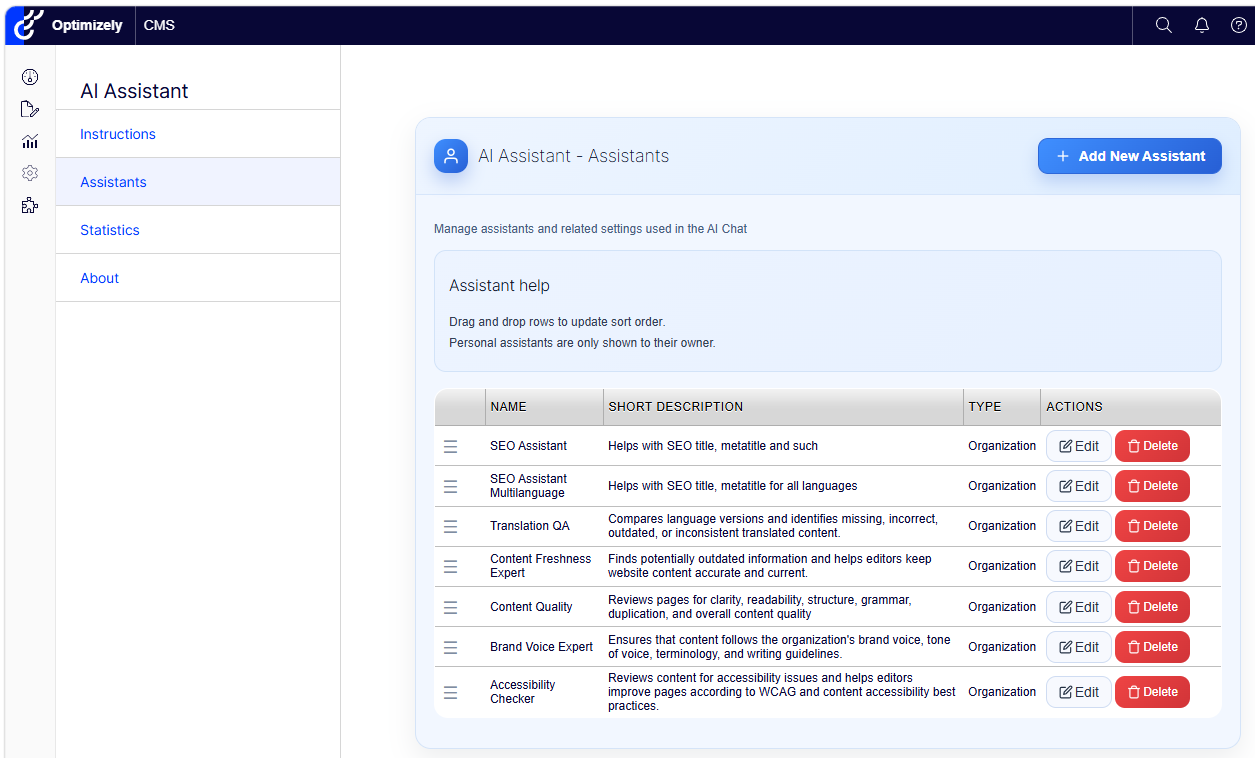
Admin Overview of reusable Instructions available to editors.
Statistics: Understand AI usage and cost
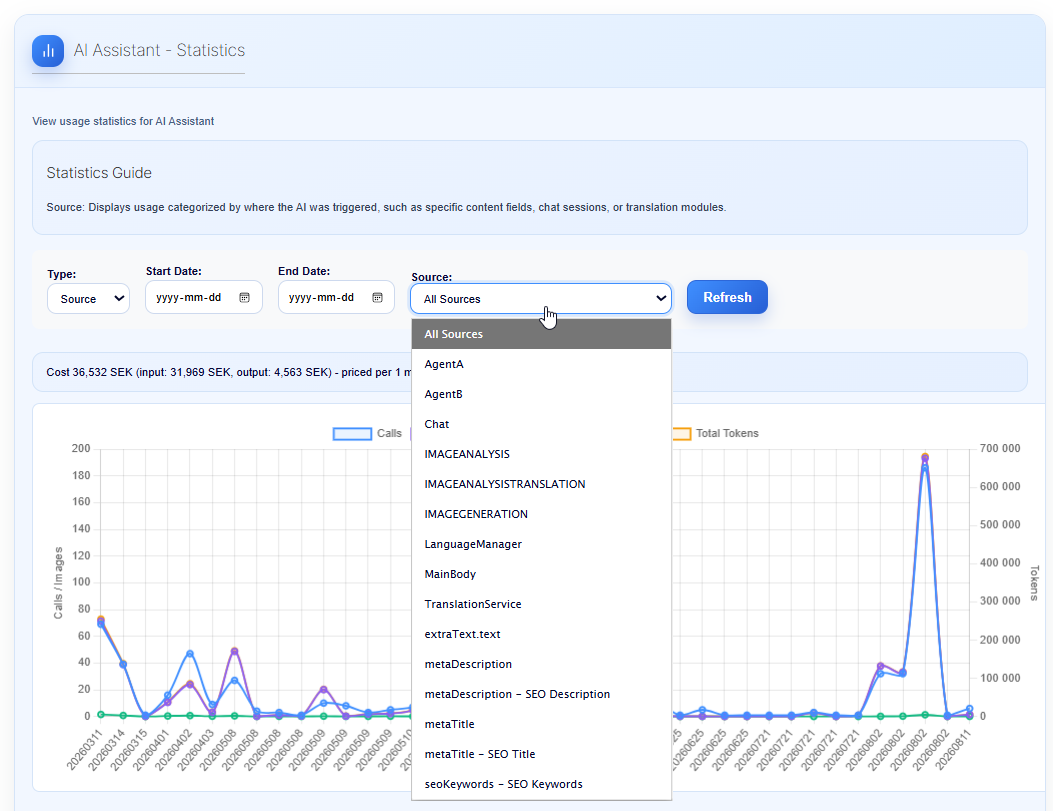
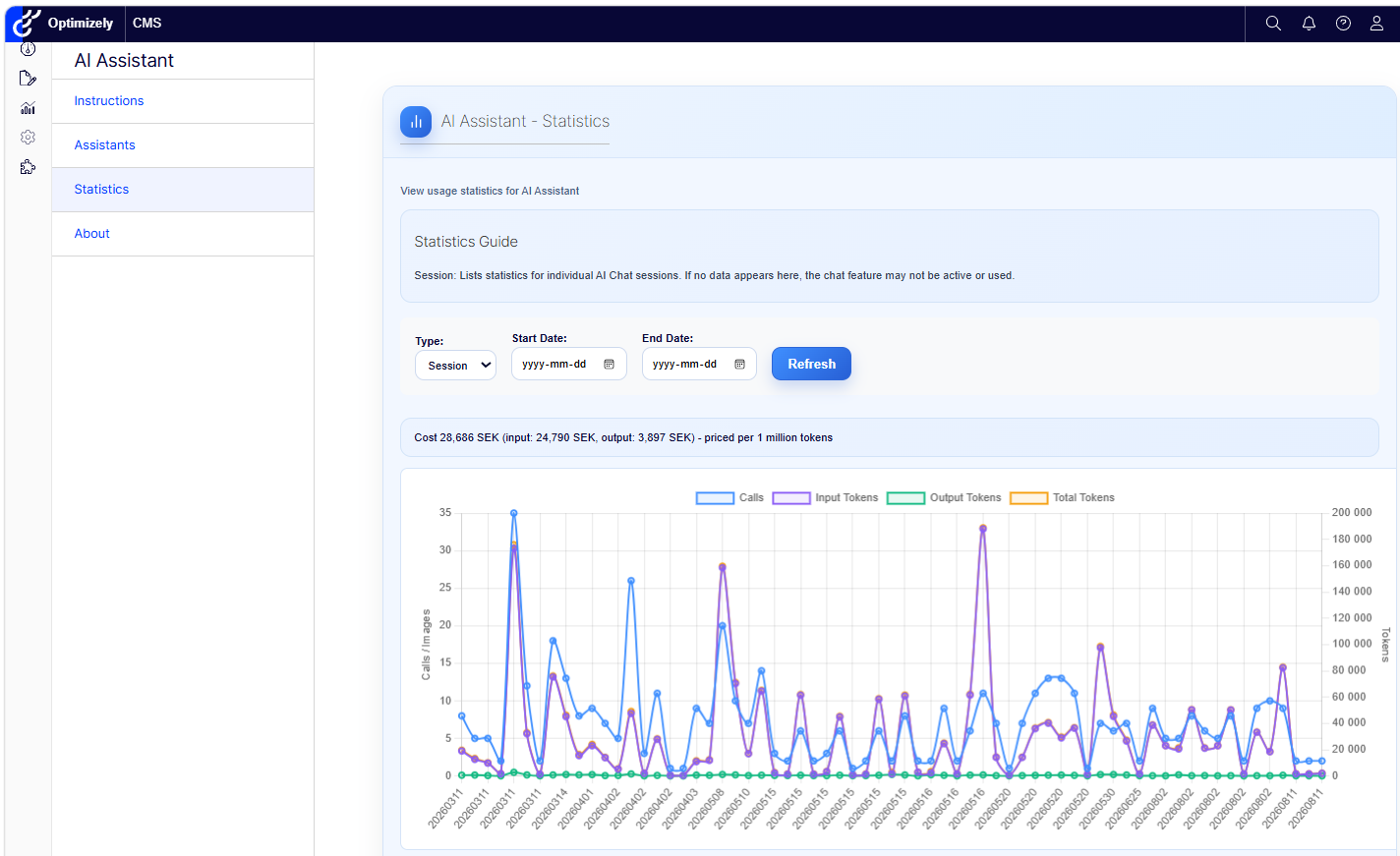
The new Statistics view provides a clear overview of how AI Assistant is being used.
You can track:
- Number of AI calls
- Input and output tokens
- Total token usage
- Estimated cost
- Usage by date
- Individual chat sessions
- Usage by feature or content field
Filter the statistics by date, source or reporting type. View the total usage, follow daily activity or explore individual sessions.
This makes it easier to understand adoption, identify usage patterns and keep track of AI costs.
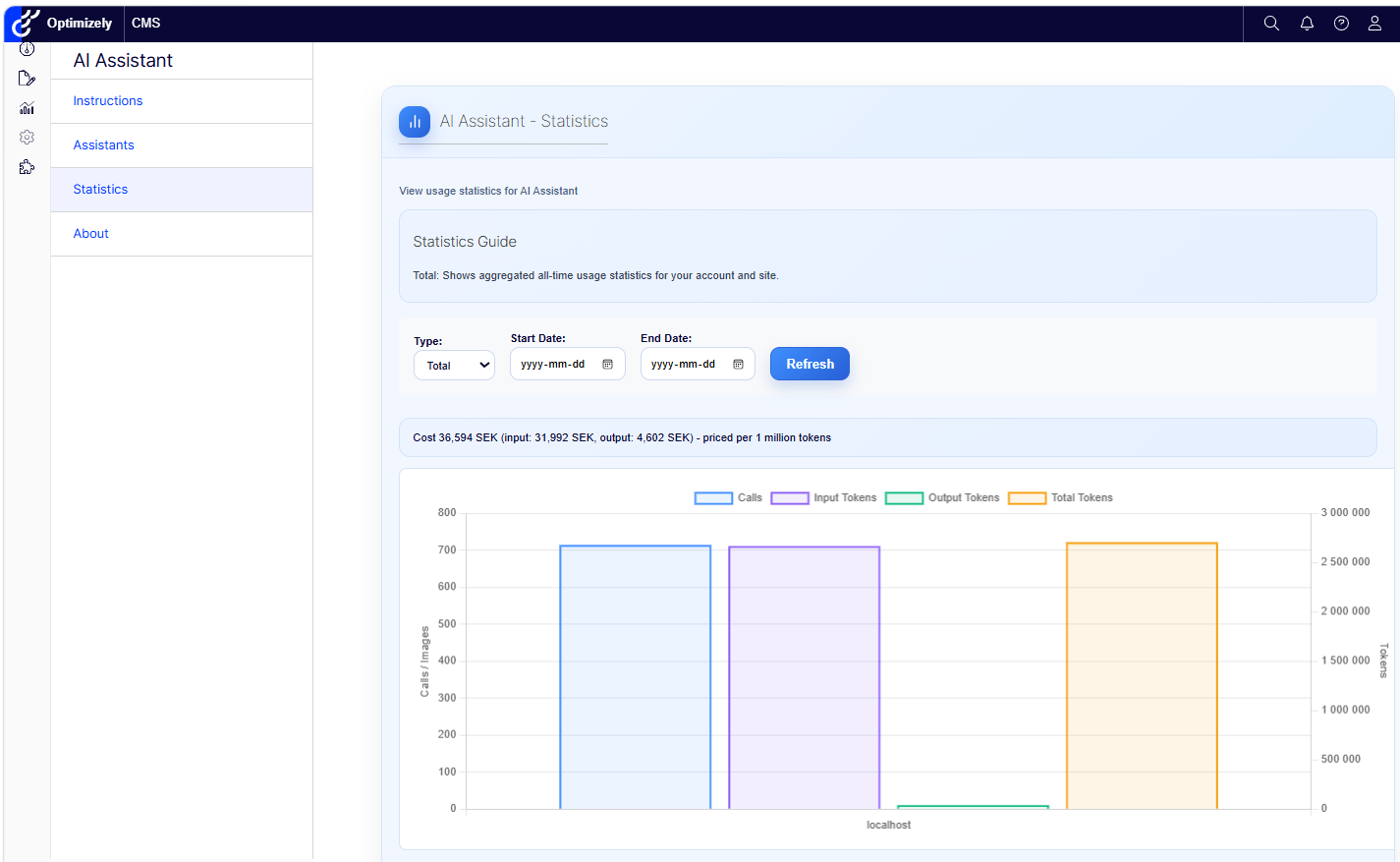
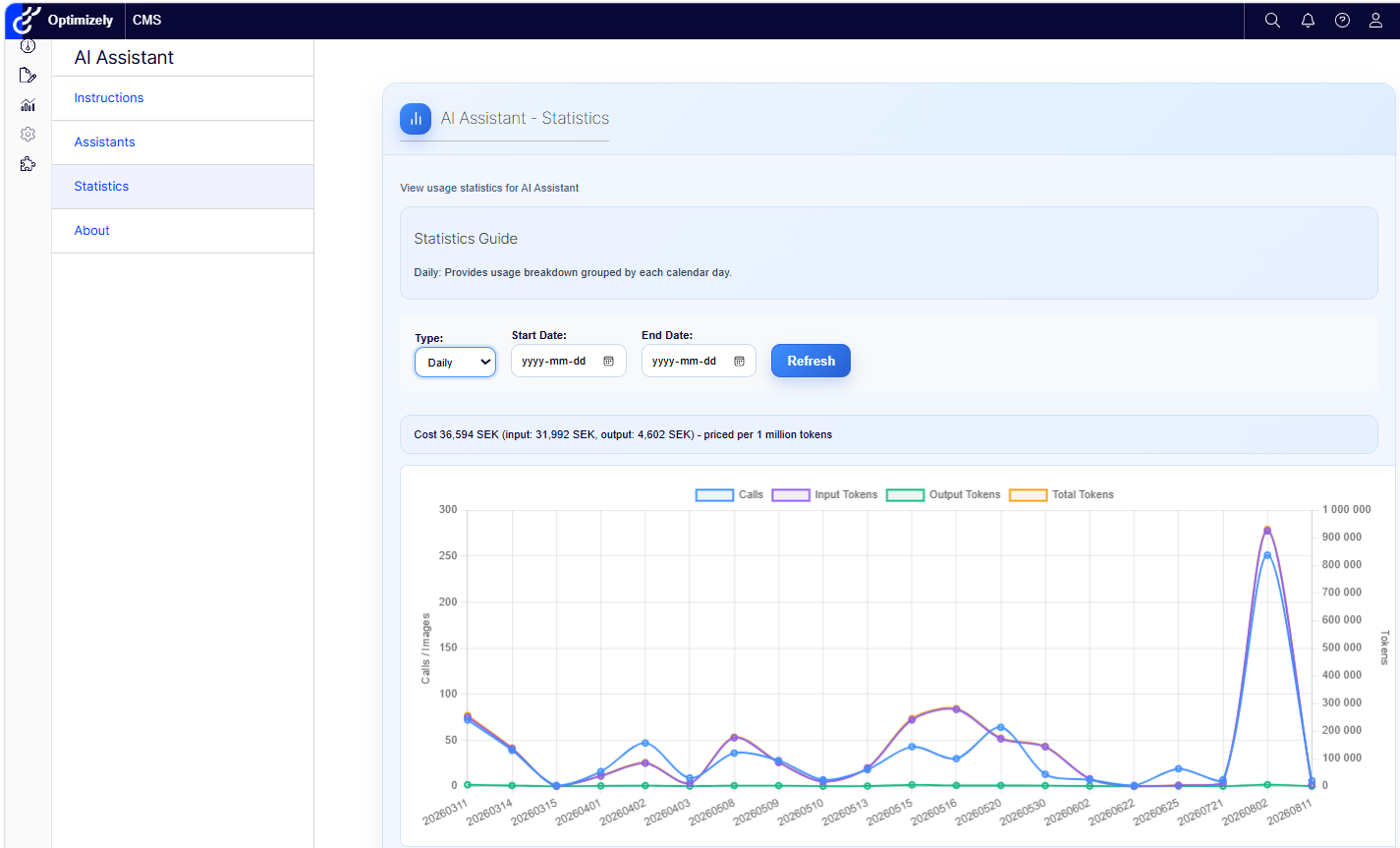
Cost Settings
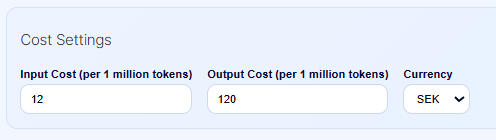
The Cost Settings allow administrators to enter the current input and output token prices for the selected AI model and currency. These values are specified per one million tokens.
This is needed because AI providers and models have different prices. The settings allow AI Assistant to calculate and display more accurate estimated costs in the Statistics view.
A better experience for editors and administrators
Together, these features make AI Assistant easier to manage and faster to use.
Editors get direct access to task-specific expertise and useful shortcuts. Administrators get better control over shared AI guidance and a clearer view of usage and costs.
The result is a more structured, consistent and transparent way to use AI directly inside Optimizely CMS.
Book a meeting to get started!
We offer a one-hour introduction meeting about our AI Assistant for Optimizely CMS 12 or later. (Swedish or English)
The AI Assistant: This is what you get
Feature-Rich for Enhanced Editorial Efficiency
Epicweb's AI Assistant comes with an impressive array of features:
-
Text Suggestions and Alternatives: Enhance your writing with AI-generated phrasing and alternative variations.
-
Multilingual Translation: Seamlessly translate your text into multiple languages while preserving formatting and style to reach a diverse audience.
-
SEO, AEO and GEO: Generate optimization content for search engines and AI search.
-
Prompt Pro Assistance: It saves time and helps you get more out of your ideas, instantly.
-
Image AltText Analyzer: Advanced AI capabilities to analyze images and automatically populate media object properties
-
Image Generation: Create relevant and engaging images that complement your content.
-
Image Transformer: Take any image, enhance it, and add new elements with AI-powered creativity. Transform the way you interact with images.
-
New Text Generation: Generate fresh content that keeps your audience engaged.
-
Text Summarization: Quickly condense long texts into concise summaries, saving time and maintaining essence, perfect for SEO descriptions.
-
HTML Formatting: The AI-Assistant offers a range of formatting capabilities within the Rich Text Editor. WCAG Compatible.
-
Spell-Checking: Ensure your content is error-free and professionally polished.
-
Tone Adjustment and Consistency: Adapt your content’s tone to suit its purpose and maintain a consistent brand voice.
-
Keyword Extraction: Identify and extract key terms from your text for SEO optimization.
-
Custom Assistants: Harness the power to run your own prompts for tailored, unique content management.
-
Custom Shortcut Prompts: Add your own shortcuts for frequently used commands, connect tools and enhancing productivity.
-
Inline Chat: Use ChatGPT or Google GEMINI directly within the platform for instant assistance with full context awarness.
-
Tools for AI: Connect your C# Function Calling or MCP tools directly to the AI Assistant, enabling custom integrations.
-
RAG (Retrieval-Augmented Generation): Connect your own knowledge base for AI responses powered by your organization’s internal data.
Streamlined Integration into Optimizely
The AI Assistant is seamlessly integrated into every field within the Optimizely CMS and Commerce platform, ensuring that these powerful features are accessible right where you need them, in the editor mode.
Getting Started with The Epicweb AI-Assistant:
To get started with the free evaluation, simply fill in the form in our website to get started and download the addon to your Optimizely CMS and Customizable Commerce platform from the Optimizely Nuget feed.
Follow our beginner-friendly guide or dive deep with our comprehensive documentation.
Installation is quick and easy, allowing you to start harnessing the power of AI assistance in no time.
Book a meeting to get started!
We offer a one-hour introduction meeting about our AI Assistant for Optimizely CMS. (Swedish or English)
Note: This blog post has been enhanced with the help of the AI-Assistant for Optimizely.
About the Author