
How to Install and Configure AI Chat for Optimizely CMS - Complete Guide
AI Assistant Chat is a revolutionary feature introduced in version 3.0 of Epicweb.Optimizely.AIAssistant that brings conversational AI directly into your Optimizely CMS editing experience. Instead of manually filling fields or guessing at optimal content, you can now have natural conversations with AI while working with pages, blocks, and media.

Think of it as having an expert content strategist, SEO specialist, and technical writer all rolled into one, available 24/7, right in your CMS toolbar.
The Power of Conversational Content Management - Part 1
Instead of this traditional workflow:
1. Open page editor
2. Think about SEO title
3. Write title
4. Check character count
5. Revise
6. Repeat for meta description
7. Manually check accessibility
8. Review content structure
You can now do this:
You: "Analyze this page's SEO and suggest improvements"
AI: [Analyzes current page, identifies 3 issues]
You: "Apply those suggestions"
AI: [Updates SEO title, meta description, and heading structure] "Done! Review the changes?"
Watch: AI Chat in action
Key Benefits
Boost Productivity
- 10x faster content creation - Generate SEO-optimized content in seconds
- Automated workflows - Let AI handle repetitive tasks
- Smart suggestions - Get intelligent recommendations based on your content
- Instant operations - Update content through natural conversation
Improve Content Quality
- SEO optimization - AI suggests search-friendly titles, descriptions, and structure
- Consistency - Maintain brand voice across all content
- Accessibility - Automatic alt text and WCAG compliance checks
- Multi-language - Seamless translation with context awareness
Intelligent Assistance
- Context-aware - Understands what you're working on
- Learning capabilities - Adapts to your content guidelines
- Real-time help - Get answers without leaving the CMS
- Content analysis - Instant feedback on readability, tone, and structure
Powerful Tool Integration
- Content operations - Create, read, update, and publish through conversation
- Image handling - Generate alt text and analyze images
- External systems - Integrate with APIs, databases, and services
- Custom tools - Extend with your own business logic
Team Empowerment
- Lower barrier to entry - New editors productive from day one
- Best practices built-in - AI guides editors toward quality content
- Role-based access - Control who can use AI features (optional)
- Audit trail - Track all AI-assisted changes
Prerequisites
Before installing AI Chat, ensure you have:
- Optimizely CMS 12.18+ or Optimizely Commerce 14+
- Epicweb.Optimizely.AIAssistant 3.0+ installed
- OpenAI API key or compatible AI provider (Azure OpenAI, Google Gemini) - this is not needed on localhost
- Developer access to your solution's source code
- .NET 6.0+ (or compatible with your CMS version)
Step-by-Step Installation
Step 1: Install Base Package
If you haven't already installed the AI Assistant, start here:
Via NuGet Package Manager Console:
Install-Package Epicweb.Optimizely.AIAssistant
Or via .NET CLI:
dotnet add package Epicweb.Optimizely.AIAssistant
NuGet URL:
https://nuget.optimizely.com/package/?id=Epicweb.Optimizely.AIAssistant
Step 2: Install Built-in Tools Package
AI Chat requires tools to function. The built-in tools package provides essential functionality:
Via NuGet Package Manager Console:
Install-Package Epicweb.Optimizely.AIAssistant.Tools
Or via .NET CLI:
dotnet add package Epicweb.Optimizely.AIAssistant.Tools
NuGet URL:
https://nuget.optimizely.com/package/?id=Epicweb.Optimizely.AIAssistant.Tools
Why are tools important? Tools enable AI to perform real operations, fetching content, updating properties, publishing pages, instead of just generating text. Without tools, the AI can only suggest changes. With tools, it can actually execute them.
Step 3: Configure Services in Startup.cs
Open your Startup.cs file and register the AI Assistant with all necessary tool packs:
using Epicweb.Optimizely.AIAssistant;
using Epicweb.Optimizely.AIAssistant.Tools;
using Epicweb.Optimizely.AIAssistant.Hub;

public void ConfigureServices(IServiceCollection services)
{
    // ... your existing services ...

    services
        .AddAIAssistant()
        // Register built-in tool types for AI Chat functionality
        .RegisterMcpToolType(typeof(BuiltinTools))            // Core helper tools
        .RegisterMcpToolType(typeof(BuiltinChatTools))        // Content reading
        .RegisterMcpToolType(typeof(BuiltinPublishChatTools)) // Publishing operations
        .RegisterMcpToolType(typeof(BuiltinUpdateChatTools))  // Content updates
        .RegisterMcpToolType(typeof(BuiltinChatImageTools))   // Image analysis
        .RegisterMcpToolType(typeof(BuiltinChatCreateImageTools)); // Image generation

    // ... other registrations ...
}
Tool Pack Breakdown:
| Tool Pack | Purpose | Example Operations |
|---|---|---|
BuiltinTools |
Core helper utilities | Date formatting, string manipulation |
BuiltinChatTools |
Content reading | Get page content, search, list children |
BuiltinPublishChatTools |
Publishing | Publish, unpublish, schedule |
BuiltinUpdateChatTools |
Content editing | Update properties, create drafts |
BuiltinChatImageTools |
Image operations | Analyze images, generate alt text |
BuiltinChatCreateImageTools |
Image creation | Instruction how to create images |
Step 4: Register SignalR Hub
AI Chat uses SignalR for real-time communication. Add the hub endpoint in your Configure method:
using Epicweb.Optimizely.AIAssistant.Hub;

public void Configure(IApplicationBuilder app, IWebHostEnvironment env)
{
    // ... existing middleware ...

    app.UseEndpoints(endpoints =>
    {
        endpoints.MapControllers();
        endpoints.MapContent();
        endpoints.MapAIAssistantHub(); // Required for AI Chat
    });
}
Important: Without MapAIAssistantHub(), the chat window will fail to connect and display errors.
Step 5: Configure in appsettings.json
Add AI Chat configuration to your appsettings.json:
{
  "Epicweb": {
    "AIAssistant": {
      "ApiKey": "sk-proj-your-openai-api-key-here",
      "Provider": "AzureOpenAI",
      "Model": "gpt-5.2",
      "EnableChat": true,
      "ChatRoles": [
        "AIEditors",
        "WebEditors",
        "WebAdmins",
        "CmsAdmins",
        "CmsEditors"
      ],
      "MaxToolIterations": 8
    }
  }
}
Configuration Options Explained:
| Setting | Type | Description | Default |
|---|---|---|---|
ApiKey |
string | Your OpenAI API key from https://platform.openai.com/account/api-keys | Required |
Provider |
string | AI provider: OpenAI, AzureOpenAI, Gemini |
OpenAI |
Model |
string | AI model to use (see recommendations below) | gpt-5.2 |
EnableChat |
bool | Enables the AI Chat window in CMS toolbar | false |
ChatRoles |
string[] | User roles that can access AI Chat (optional, if not specified all authenticated users can access) | All users |
MaxToolIterations |
int | Prevents infinite tool calling loops | 8 |
Getting Your API Key
- Go to https://platform.openai.com/account/api-keys
- Sign up or log in
- Click "Create new secret key"
- Copy the key (starts with
sk-) - Add to
appsettings.json
Security Tip: Never commit API keys to source control. Use:
- Azure Key Vault
- Environment variables
- User secrets (
dotnet user-secrets set "Epicweb:AIAssistant:ApiKey" "sk-...")
Step 6: Choose the Right AI Model
Critical: AI Chat requires advanced models with robust tool calling capabilities.
Recommended Models
OpenAI:
gpt-5.2- Latest, best overall performance (recommended)gpt-5.1- Excellent tool coordination and reasoninggpt-5- Solid performance with tool callinggpt-5.5-mini- Budget-friendly option with good tool support
Azure OpenAI:
gpt-5.2- Same as OpenAI, but hosted in Azuregpt-5.1- Robust enterprise option
Google Gemini:
gemini-2.5-pro- Latest stable version (recommended)gemini-2.5-flash- Faster, cost-effective option
Models NOT Compatible with AI Chat
gpt-4o,gpt-4-turbo,gpt-4- Older generation, incompatible tool callinggpt-3.5-turbo- No advanced tool coordinationgemini-1.5-pro,gemini-1.5-flash- Older Gemini versions not supported
Why model choice matters: AI Chat uses advanced function calling to execute multiple tools in complex sequences. Only GPT-5+ and Gemini 2.5+ models have the necessary capabilities to:
- Chain multiple tool calls together
- Handle errors and retry with different approaches
- Maintain context across long conversations
- Understand when to use specific tools
Step 7: Configure Role-Based Access (Optional)
By default, all authenticated CMS users can access AI Chat. To restrict access to specific roles:
Example: Restrict to admins only
"ChatRoles": ["CmsAdmins", "WebAdmins"]
Example: Allow specific editor roles
"ChatRoles": ["CmsEditors", "WebEditors", "AIEditors", "CmsAdmins"]
Example: Custom roles
"ChatRoles": ["ContentCreators", "SEOSpecialists"]
To allow all users: Simply omit the ChatRoles setting or set it to an empty array:
"ChatRoles": []
Make sure users are assigned these roles in Optimizely's admin interface under:
Admin -> Administer Groups
Step 8: Verify Installation
After completing the setup:
- Build your solution
dotnet build - Run the application
dotnet run - Log in to Optimizely CMS
- Look for the AI Chat button in the CMS toolbar (typically top-right)
- Click to open the chat window
- Test with a simple command:
"What tools are available?"
If you see a list of tools, congratulations. AI Chat is working.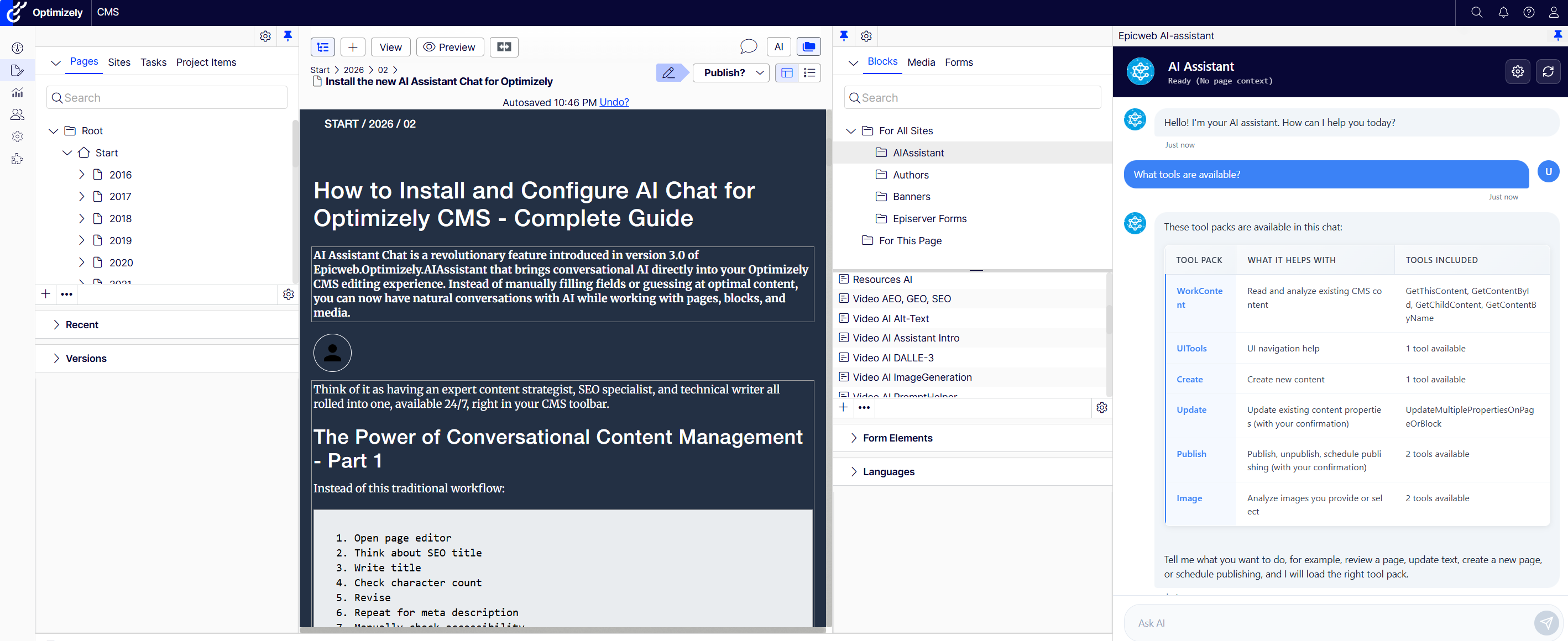
Next up
You now have AI Assistant Chat installed and connected, with the right tool packs registered, SignalR enabled, and provider settings in place. From here, you can start using chat to analyze pages, improve SEO, check accessibility, and make safe, reviewable updates directly from the Optimizely editing UI.
This was Part 1, focused on installation and baseline configuration. In Part 2, we go deeper into configuration, custom instructions and custom tools.
Link to documentation: https://github.com/Epicweb-Optimizely/Epicweb.Optimizely.AIAssistant/
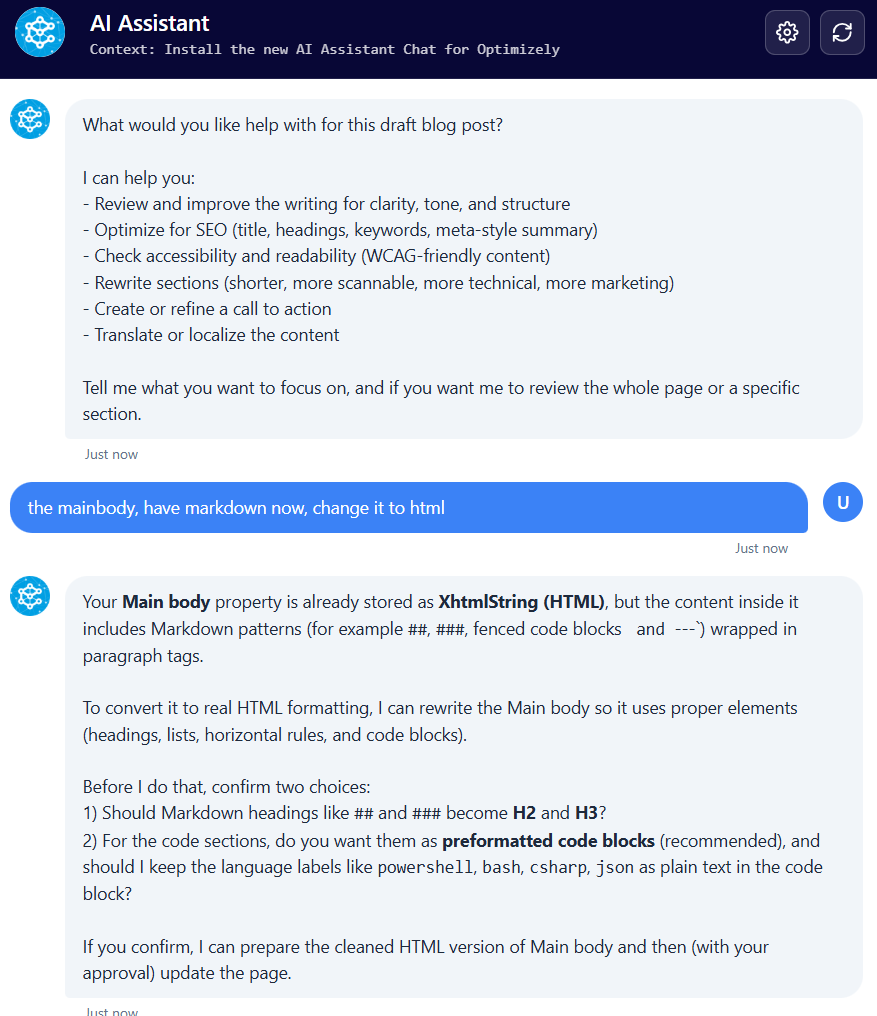
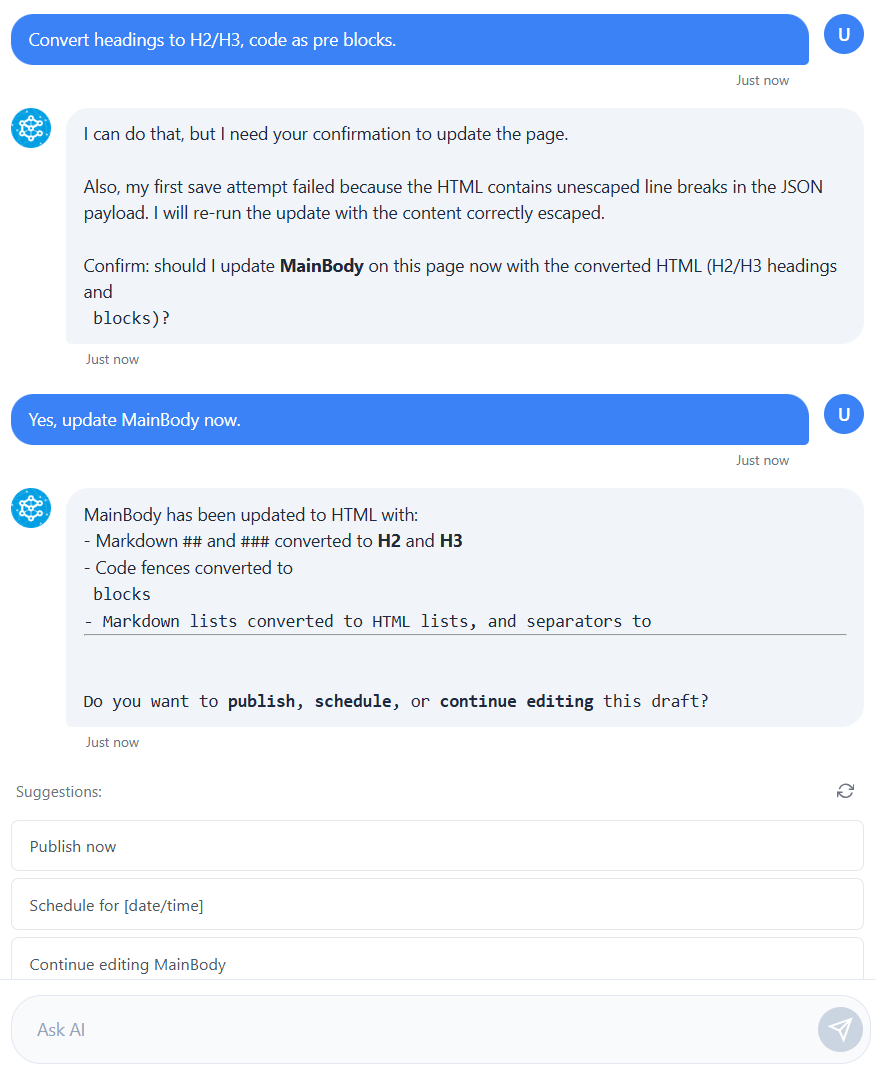
Screenshot examples
Book a meeting to get started!
We offer a one-hour introduction meeting about our AI Assistant for Optimizely CMS 12. (Swedish or English)
The AI Assistant: This is what you get
Feature-Rich for Enhanced Editorial Efficiency
Epicweb's AI Assistant comes with an impressive array of features:
-
Text Suggestions and Alternatives: Enhance your writing with AI-generated phrasing and alternative variations.
-
Multilingual Translation: Seamlessly translate your text into multiple languages while preserving formatting and style to reach a diverse audience.
-
SEO, AEO and GEO: Generate optimization content for search engines and AI search.
-
Prompt Pro Assistance: It saves time and helps you get more out of your ideas, instantly.
-
Image AltText Analyzer: Advanced AI capabilities to analyze images and automatically populate media object properties
-
Image Generation: Create relevant and engaging images that complement your content.
-
Image Transformer: Take any image, enhance it, and add new elements with AI-powered creativity. Transform the way you interact with images.
-
New Text Generation: Generate fresh content that keeps your audience engaged.
-
Text Summarization: Quickly condense long texts into concise summaries, saving time and maintaining essence, perfect for SEO descriptions.
-
HTML Formatting: The AI-Assistant offers a range of formatting capabilities within the Rich Text Editor. WCAG Compatible.
-
Spell-Checking: Ensure your content is error-free and professionally polished.
-
Tone Adjustment and Consistency: Adapt your content’s tone to suit its purpose and maintain a consistent brand voice.
-
Keyword Extraction: Identify and extract key terms from your text for SEO optimization.
-
Custom Prompts with ChatGPT: Leverage the power of ChatGPT to run your own prompts for unique content creation.
-
Custom Shortcut Prompts: Add your own shortcuts for frequently used commands, connect tools and enhancing productivity.
-
Inline ChatGPT Help: Use ChatGPT or Google GEMINI directly within the platform for instant assistance.
-
Tools for AI: Connect your C# Function Calling or MCP tools directly to the AI Assistant, enabling custom integrations.
-
RAG (Retrieval-Augmented Generation): Connect your own knowledge base for AI responses powered by your organization’s internal data.
Streamlined Integration into Optimizely
The AI Assistant is seamlessly integrated into every field within the Optimizely CMS and Commerce platform, ensuring that these powerful features are accessible right where you need them, in the editor mode.
Getting Started with The Epicweb AI-Assistant:
To get started with the free evaluation, simply fill in the form in our website to get started and download the addon to your Optimizely CMS and Customizable Commerce platform from the Optimizely Nuget feed.
Follow our beginner-friendly guide or dive deep with our comprehensive documentation.
Installation is quick and easy, allowing you to start harnessing the power of AI assistance in no time.
Book a meeting to get started!
We offer a one-hour introduction meeting about our AI Assistant for Optimizely CMS 12. (Swedish or English)
Note: This blog post has been enhanced with the help of the AI-Assistant for Optimizely.
About the Author